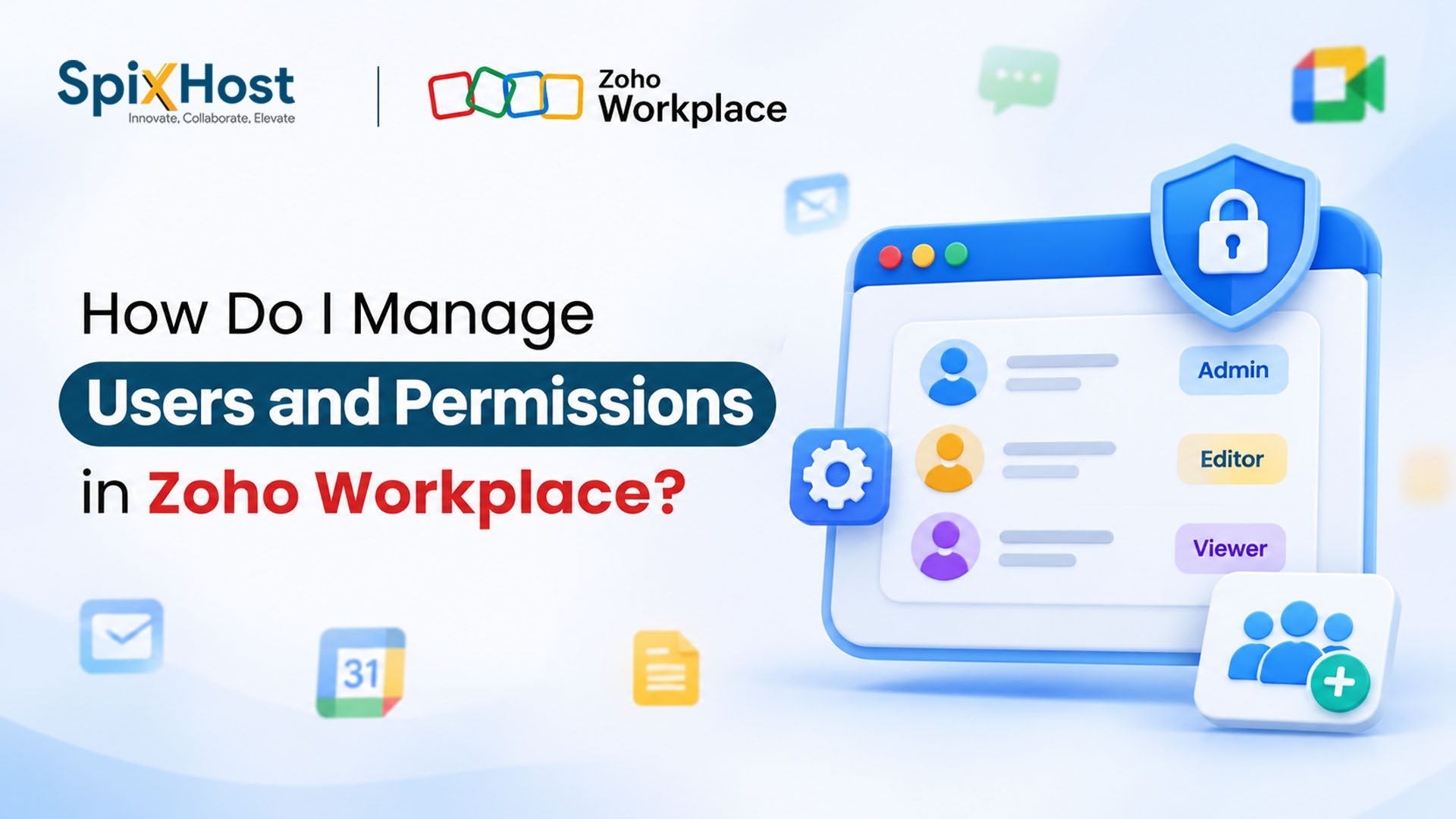
Managing a growing team becomes easier when every employee has the right tools and access to the information they need. Manage users in Zoho Workplace
For companies looking to improve workplace security and collaboration, understanding Zoho Workplace user management
In this guide, we’ll explain how to add users, assign roles, manage permissions, create groups, and update access as your team changes. You’ll also learn how to apply practical security measures to protect your business accounts.
For businesses in Pakistan, SpixHost
What Is User Management in Zoho Workplace?
User management is the process of creating, organizing, and maintaining employee accounts within an organization's digital workspace. In Zoho Workplace, administrators can add team members, manage their account details, assign roles, and control which applications and resources they can access.
Every employee who uses the organization's Zoho Workplace account needs an individual user account. The available access depends on the organization's subscription, assigned role, and permissions within individual applications.
For example, a marketing employee may need access to Zoho Mail, WorkDrive, and shared documents, while an HR employee may need access to different files and communication groups.
With Zoho Workplace user management
How Do I Access the Zoho Workplace Admin Console?
The Admin Console is where authorized administrators manage important organization settings and user-related tasks.
To access it:
- Admin Console
The available settings may vary depending on your assigned administrator role and the application you are managing.
The Admin Console is particularly useful for businesses that need centralized control over employee accounts and organizational settings.
How Do I Add New Users to Zoho Workplace?
When a new employee joins your company, you can create an individual account so they can access the applications included in your subscription.
Follow these steps:
Once the account is created, the administrator can share the login information with the employee so they can sign in.
Can I Add Multiple Employees at Once?
Yes. Zoho Workplace supports different methods for adding users, including manual creation and importing users.
Depending on your setup, you can import employees through:
This can be helpful when a company is moving its employees to Zoho Workplace or setting up accounts for a larger team.
Before importing users, review the information carefully to avoid duplicate or incorrect accounts. Also, make sure your subscription includes enough user licenses for the employees you want to add.
What Are the Different User Roles in Zoho Workplace?
Not every employee needs administrative control. Zoho Workplace provides different roles so organizations can distribute responsibilities according to each person's job.
Understanding Zoho Workplace user roles
The main organization-level roles include:
1. Super Admin
The Super Admin has the highest level of control over the organization and the applications they administer.
Their responsibilities can include:
The person who initially signs up for Zoho Workplace is assigned the Super Admin role by default.
2. Admin
An Admin has many of the responsibilities available to a Super Admin but does not have access to certain critical actions, such as deleting the organization or changing the Super Admin's delegation.
Businesses can assign administrator responsibilities to trusted employees who need to manage specific operations without giving them complete ownership of the account.
3. User
A regular User has limited access to administrative settings. They can use the applications and manage personal preferences, such as display settings and notifications, but cannot perform organization-wide security operations.
This role is suitable for most employees who need everyday access to business tools.
How Do I Assign and Manage Permissions?
Permissions determine what a user can view, edit, share, or manage within an application or resource.
For example, an employee may be allowed to read a shared document but not change its content. Another employee may need editing rights because they are responsible for updating the document.
Managing Zoho Workplace permissions
Here are some important areas where you can manage access.
1. Assign Permissions in Zoho Mail
Zoho Mail offers different administrative responsibilities. Apart from the Super Admin and Admin roles, organizations can assign custom administrator roles based on specific tasks.
Examples include:
- User Management Admin:
- Group Management Admin:
- Spam Control Admin:
- Helpdesk Admin:
- Quarantine Admin:
These roles allow businesses to distribute email administration without assigning every responsibility to one person.
2. Manage Permissions in Zoho WorkDrive
Zoho WorkDrive provides team-level and Team Folder permissions. These roles determine how employees interact with shared files and folders.
The main Team Folder roles include:
| Role |
For example, a project manager may receive an Organizer role, while team members who prepare documents can receive Editor access. Employees who only need to review files can be assigned the Viewer role.
This approach supports user access management
3. Control Access to Office Documents
Zoho Writer, Sheet, and Show allow users to share individual files with different access levels.
The available permissions include:
- View:
- View and Comment:
- Edit:
- Share:
The person sharing the file can select the appropriate permission for each collaborator.
For example, a finance manager may give an employee editing access to a spreadsheet while providing view-only access to other departments.
How Does Role-Based Access Control Work?
Role-based access control
Instead of giving every employee access to all company resources, administrators define roles and assign the appropriate access to each role.
Consider a company with three departments:
- Marketing:
- Human Resources:
- Finance:
Each department can receive access to the resources required for its work.
This approach makes business user management
It also supports better security. Employees are less likely to access information that is unrelated to their work.
How Can I Create Groups to Organize Employees?
Groups help businesses organize employees who need to communicate or collaborate regularly.
For example, you can create separate groups for HR, marketing, sales, finance, or project teams. This makes it easier to share information with multiple employees without adding each person individually every time.
To organize employees into groups, administrators can:
In Zoho WorkDrive, groups can be used to organize team collaboration. Group Admins can add or remove members and manage group information, while regular Group Members have more limited responsibilities.
Groups can also simplify communication through shared email addresses and department-based collaboration.
How Do I Remove or Update Employee Access?
Employee access should change whenever someone joins, changes departments, takes on new responsibilities, or leaves the organization.
For example, if an employee moves from marketing to sales, their access should be reviewed so they can use the resources required for their new role.
When an employee leaves the company, administrators should promptly review and revoke their access.
Important account-management actions include:
These steps help maintain accurate employee account management
Before removing an employee, check whether they own important documents, folders, or other business resources. Transfer ownership or preserve essential information where required.
What Are the Best Practices for Managing User Permissions?
Setting up accounts is only one part of administration. Businesses should also review their access policies regularly to maintain security and keep employee permissions organized.
Here are some useful practices:
1. Give Employees Only the Access They Need
Avoid assigning administrator privileges to every employee. Most users only need access to the tools and information required for their daily responsibilities.
2. Review Permissions Regularly
Employee responsibilities change over time. Review user roles, shared folders, and application permissions to make sure they are still appropriate.
3. Use Strong Passwords and Multi-Factor Authentication
Encourage employees to use strong, unique passwords. Enable multi-factor authentication where available to add another layer of account protection.
4. Organize Employees Into Groups
Create groups according to departments, teams, or projects. This makes it easier to manage shared access and reduces repetitive administrative work.
5. Limit Administrator Accounts
Only trusted employees who genuinely need administrative responsibilities should receive elevated access. Assign specific admin roles where possible instead of giving everyone Super Admin privileges.
6. Review Access When Employees Leave
Remove access to business applications, shared files, and communication groups when an employee leaves. Also review ownership of important company information.
Following these practices can improve business account security
Why Choose SpixHost for Zoho Workplace in Pakistan?
Setting up a business productivity platform involves more than purchasing licenses. Organizations also need to configure their accounts, add employees, organize access, and make sure the applications support their daily operations.
SpixHost
With Zoho Workplace, businesses can bring professional email, team messaging, online meetings, file storage, and office applications together in one platform.
The suite includes tools such as Zoho Mail, Zoho Calendar, Zoho WorkDrive, Zoho Writer, Zoho Sheet, Zoho Show, Zoho Cliq, and Zoho Meeting.
Whether you are setting up a new team or moving from another productivity platform, choosing the right plan and configuration can make the transition easier.
SpixHost offers Zoho Workplace at affordable and discounted prices, along with support for businesses looking for suitable workplace solutions. You can explore the available plans and discuss your organization's requirements before getting started.
For businesses in Pakistan, SpixHost provides Zoho Workplace solutions
Frequently Asked Questions
1. Can I manage multiple users in Zoho Workplace?
Yes. Administrators can add individual users manually or import users through supported methods such as CSV files and existing cloud services. The number of users depends on the available licenses.
2. What is the difference between a Super Admin and an Admin?
A Super Admin has the highest level of administrative control. An Admin has many similar responsibilities but cannot perform certain critical actions, including deleting the organization or changing Super Admin delegation.
3. Can I give different permissions to different employees?
Yes. Zoho Workplace applications offer different roles and access levels. For example, WorkDrive supports roles such as Admin, Organizer, Editor, Commenter, and Viewer.
4. Can I restrict access to specific files in Zoho Workplace?
Yes. In applications such as Zoho Writer, Sheet, and Show, file owners can share documents with specific collaborators and assign permissions such as View, View and Comment, Edit, or Share.
5. Can I remove a user's access when they leave my company?
Yes. Administrators can manage employee accounts and remove users from the organization. Before doing so, review their shared files, groups, and ownership responsibilities to make sure important business information remains accessible.
Meta Title:
Meta Description: